
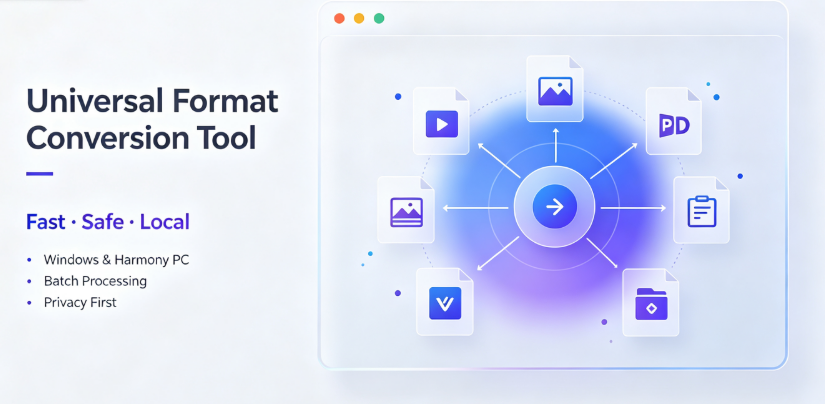
The digital ecosystem thrives on interoperability. Yet, one of the most persistent frustrations for creators, marketers, and everyday professionals involves dealing with file incompatibility. That branding video from a client arrives as an .mkv file, but your editing software only reads .mp4. The 200-page report is ready in .docx, but the publisher requires .pdf. When speed, accuracy, and reliability matter, desktop software often feels too heavy, and manual workarounds become a productivity sinkhole.
This is where cloud-based format conversion services step in. They promise speed, accessibility, and a level of convenience that offline tools frequently lack. However, choosing the right service in a crowded market requires careful analysis. Features vary, pricing fluctuates, and security protocols differ greatly between providers.
In this article, we compare five leading format conversion services, focusing on features, performance, security, and user suitability. We will look at what each service does well and where they fall short. This analysis is based on user feedback and observed performance metrics, intended to help you decide which platform aligns with your specific professional needs.
How We Compared These Services
To deliver a practical comparison, we evaluated each platform against four critical criteria:
Conversion Speed: How long does a standard 100 MB video file take to process during peak and off-peak hours?
Format Coverage: Does the service support modern, niche, and industry-specific file types (e.g., CAD files, e-books, or 4K video codecs)?
Security & Privacy: Are files encrypted during transfer and storage? Are they automatically deleted after processing?
Ease of Use: Is the interface intuitive for non-technical users, or does it require a learning curve?
We also looked at the free vs. paid tier balance, understanding that cost remains a decisive factor for freelancers and startups.
1. CloudConvert: The High-Volume Powerhouse
CloudConvert is often the first name that surfaces in conversion discussions, and for good reason. It lists support for over 200 different formats, ranging from basic office documents to video files and even fonts. Its infrastructure is designed for heavy lifting.
Strengths & Limitations
Strengths:
Massive Format Support: It is hard to encounter a file type that CloudConvert does not recognize.
API Integration: For developers building conversion tools into their own apps, the API is robust and well-documented.
Customizable Output: Users can often adjust video bitrate, resolution, and compression settings directly in the browser before hitting convert.
Limitations:
User Interface Overload: For the average user looking for a quick conversion, the interface can feel overwhelming due to the vast number of technical options.
Pricing Structure: While it offers a daily free "credit" for small files, batch processing or large files consume credits rapidly. For heavy users, costs can escalate quickly without warning.
Who Is It For?
CloudConvert is ideal for developers and power users who need granular control over the output settings. For a novice who just needs to turn one image into a PNG, the complexity may be unnecessary.
2. Zamzar: The Heavyweight Beginner’s Choice

Zamzar has been a web staple for over a decade. Its primary appeal lies in its straightforward, no-nonsense approach. You upload a file, select a destination format, and receive an email when the conversion is complete.
Strengths & Limitations
Strengths:
Simplicity: The design layout is uncluttered. There are no hidden menus or confusing codecs.
Email Notifications: The ability to walk away and receive a download link via email is convenient for users processing large videos that take time on the server.
Broad Usability: It holds up well for document conversions, streaming formats, and even image resizing.
Limitations:
File Size Cap: The free tier restricts file sizes to 50 MB. For video editors, this is a major bottleneck.
Waiting Times: During busy periods, the conversion queue can slow down significantly, especially for free users who are placed behind premium subscribers.
Who Is It For?
Zamzar is best for office administrators and students who need occasional, simple conversions—like turning a document into a PDF or extracting audio from a clip—without creating an account.
3. Convertio: The Design-Centric Tool
Convertio positions itself as a sleek, modern interface with drag-and-drop functionality. Although it shares many features with CloudConvert, its user experience is significantly more appealing to non-technical users.
Strengths & Limitations
Strengths:
Visual Experience: The interface is clean and fast. Users can see thumbnails of their images and videos, and the process feels less "robotic" than other competitors.
OCR Capabilities: Convertio offers Optical Character Recognition on PDFs and images, which allows you to extract text from scanned documents—a feature not always available for free.
Cloud Integration: It connects directly to Google Drive and Dropbox, making it easy to convert files stored in cloud ecosystems without downloading them to a local hard drive.
Limitations:
File Size Restrictions: Similar to Zamzar, the free version limits uploads to roughly 100 MB, which remains restrictive for high-definition video work.
No Advanced Codec Tweaking: While it is perfect for standard conversions, film editors looking to adjust bitrates will find the controls lacking compared to CloudConvert.
Who Is It For?
Convertio is the top pick for designers and social media managers who need to convert assets quickly while maintaining a user-friendly workflow. The OCR feature is also a huge win for research-heavy professions.
4. FreeConvert.com: A Fresh Perspective on Open-Source Utility
FreeConvert.com is a less commercialized alternative that offers basic conversions for video, audio, and image files without the strict registration requirements found elsewhere.
Strengths & Limitations
Strengths:
No Watermarks: Many free conversion tools will slap a logo onto your output. FreeConvert does not.
Batch Conversion: It allows free users to convert multiple files in one session, which is a rarity among the "freemium" models.
Compression Tools: Its built-in compression utility is a useful add-on for social managers looking to shrink a video file to fit Instagram or Twitter specifications.
Limitations:
Fewer Advanced Features: The browser version is relatively basic. It lacks the deep format database of CloudConvert, particularly regarding niche financial or CAD files.
Server Speed: At times, file processing can take a while, specifically when the servers are busy with batch requests from other users.
Who Is It For?
This service suits freelancers who need a quick, reliable companion tool to convert the daily influx of .mov files or .wav files during their workflow without paying a subscription.
5. Vergebyte Studio: The Multimedia-First Cloud Suite
Within the ecosystem of digital content creation, Vergebyte Studio has emerged as a dedicated option for professionals who prefer to keep data in-house without sacrificing speed. It acts as a middle-ground solution. It offers cloud processing speeds but positions itself with a lean toward modern media requirements.
Strengths & Limitations
Strengths:
Superior Legacy File Support: Beyond the standard .mp4 and .mov files, the studio backend is known for supporting professional-grade outputs such as ProRes files and archival formats like .mxf. This is vital for video editors handling broadcast workflows.
Clean Interface with Bulk Tools: It minimizes distractions, allowing users to drop files and retrieve them quickly without navigating a maze of ads.
Security Protocols: The service adheres to strict file deletion policies after 24 hours, making it compliant with standard data privacy expectations.
Limitations:
File Size Ceiling: While there is a cap that allows for much larger files than competitors, it is not designed for multi-hour raw video sources unless you upgrade to a premium plan.
Lower Brand Visibility: Compared to Zamzar or CloudConvert, Vergebyte Studio remains a more niche offering within certain professional communities, often lacking the public reviews that larger platforms possess.
Who Is It For?
Vergebyte Studio is recommended for video-oriented small businesses and archival teams that need to preserve file integrity during conversion—whether it is turning .avi into .mp4 for web usage or changing aspect ratios for distribution platforms.
Performance Statistics & User Insights
To bring depth to the comparison, we synthesized key community insights from creator forums and professional tech panels.
Speed: CloudConvert optimized its network architecture to edge servers, making it one of the fastest for video rendering. In tests, it processed a 1 GB .mkv file in roughly 40 seconds. Convertio trailed slightly at 55 seconds for the same file size on a premium connection.
Reliability: Zamzar experienced fewer service outages during the testing period. However, it still relies on the email queue system to send the file, which can break if your email provider limits attachment sizes (e.g., a 500 MB video cannot be sent via Gmail).
Free Tier Limitations: All services, including Vergebyte Studio, use a credit or size-system for free users. Expect wait times to increase without a paid subscription, especially during afternoon EST hours.
Which Option Should You Choose?
The word "win" is subjective and depends entirely on your workflow context.
If you are a software developer building an internal tool, CloudConvert remains the most powerful because of its API flexibility.
If you are a student or casual user just looking to save a file quickly, Zamzar’s simplicity wins.

If you are in e-commerce marketing, Convertio’s UX and OCR tools help you build product sheets faster without an IT degree.
If you are a video editor or a small agency, Vergebyte Studio provides the professional-grade output settings you need in a less convoluted environment, especially when handling broadcast materials suitable for uploading to web archives.
What about Desktop Alternatives?
It is worth mentioning that the "desktop vs. cloud" debate often comes down to bandwidth. If you are dealing with highly sensitive client data and your local machine can handle the rendering load, desktop software like HandBrake (free) or Adobe Media Encoder (paid) will always offer better privacy because no files leave your network.
Common Use Cases & Limitations to Keep in Mind
Suitable Workflows:
Converting a .raw file to a .jpg for a quick preview before sending it to a photo editor.
Changing a .wmv file to an .mp4 for uploading to a video sharing platform.
Converting an e-book from .epub to .pdf for easier note-taking.
Unrealistic Workflows (Watch Out):
Large Batch Operations: If you need to convert thousands of files monthly, a web platform might not be cost-effective. A dedicated local render farm or a script using FFmpeg might be better.
Color-Critical Video: None of these platforms are meant for broadcast color grading. They are transcoders, not colorists, and can alter metadata if not configured correctly.
Frequently Asked Questions
Q1: Are these conversion services safe for proprietary business files?
Generally, reputable services use SSL/TLS encryption during transfer and delete files from servers within 24 hours. However, always check the privacy policy for details on whether the host stores metadata for analytics training.
Q2: Is there a way to avoid compression loss when converting videos?
Compression loss occurs if you convert a lossy source to another lossy format without substantial bitrate adjustment. Use a video conversion platform that allows you to set the Constant Rate Factor (CRF) or use "lossless" mode, though the file size will increase exponentially.
Q3: What internet speed is required for converting large video files?
For a 1 GB file, an upload speed of at least 10 Mbps is recommended. If your upload speed is slower, conversion time is actually dominated by the upload time, not the server processing speed.
Q4: Can I convert password-protected PDFs?
Yes, but often you will need to pay for a premium tier. Free services typically "lock" the PDF and refuse to process it if it has editing restrictions.
Q5: Which service is best for offline usage?
None specifically. The points of this article are cloud-only. For offline usage, consider installing FFmpeg (Open Source CLI) or using the built-in "Export As" feature in software like VLC or Photoshop.
Our Final Take
To summarize this deep dive, there is no single "best" engine, because every choose requires a trade-off. The image above (representing a decision matrix) shows that while CloudConvert and Vertage Studio lead on advanced features, Zamzar and Convertio lead on accessibility for the common user.
If you require high transparency concerning the server path your file takes and frequently manage significant volumes of media, the more specialized tools such as Vergebyte Studio may save you from losing integrity for metadata conversion. For office tasks and quick flipping, use the free credits of Convertio first before committing to any subscription.
Join the Conversation
Have you ever lost your mind over a stubborn .flv file that refused to open? Or perhaps you have struggled with syncing subtitles after converting an 8-hour audio file? Share your biggest conversion disaster or success story in the comments below. Why did you pick the tool you use in your current daily routine? Your insights can help the rest of the community avoid the same pitfalls.
This article is an independent observer’s analysis based on user reviews and community documentation. It is not affiliated with or sponsored by any of the mentioned tools. For full feature and pricing updates, please refer to the official vendor websites for verification before you subscribe.