
In 2025, file conversion sounds like the most boring problem you could have—until the file you need to convert is a signed contract, a confidential design mockup, or a client’s unedited video footage. Suddenly, the question “which online converter is fastest?” turns into a much more serious one: “Can I trust this service with my actual data?”
This article is not a ranking of “best” tools, because in file conversion, “best” is a moving target that depends entirely on your workflow. Instead, we’ll walk through real‑world scenarios, compare the major categories of conversion software, and help you decide which one fits your specific privacy, volume, and platform needs.
If you are a freelancer handling NDA‑protected material, an enterprise administrator managing confidential documents, or a cross‑border merchant processing multilingual product sheets, this guide is written for you.
The Real Question: Online vs. Offline Conversion
The file conversion market splits into two clear camps: cloud‑based web tools and local desktop software. Each has a legitimate place, but they serve fundamentally different use cases.
Why Cloud Converters Feel Convenient (and Why That’s a Trap)
Cloud converters like CloudConvert, Zamzar, or Convertio offer undeniable ease: open a browser, drag a file, download the result. For a one‑off JPEG‑to‑PNG task on a public computer, they are perfectly serviceable.
However, the convenience comes with structural risks that you cannot negotiate away:
Your file leaves your device. The moment you click “upload,” your document travels to a third‑party server. Terms of service may state that files are deleted after processing, but you have no technical means to verify deletion, nor control over where server logs are stored.
File size and quantity caps. Free tiers typically limit you to files under 50–100 MB. Large video files or batch processing require a paid subscription.
Ad‑supported interfaces. Many free web tools generate revenue through pop‑ups or redirect links, which can interrupt your workflow and occasionally lead to accidental downloads of bundled software.
Cloud tools are suitable for: low‑sensitivity files, occasional use, and tasks where you don’t mind the file passing through an external server.
Why Local Desktop Conversion Is Gaining Ground
Desktop conversion software runs entirely on your own machine. The file never leaves your computer’s storage, which eliminates the privacy leak vector at the source. This is not a niche preference—for legal, medical, and government workflows, cloud upload is often explicitly forbidden by policy.
Beyond privacy, local software offers two structural advantages:
Unlimited file size: since processing happens on your hardware, there’s no server‑side cap.
Batch processing efficiency: you can queue hundreds of files without hitting web upload/download bottlenecks.
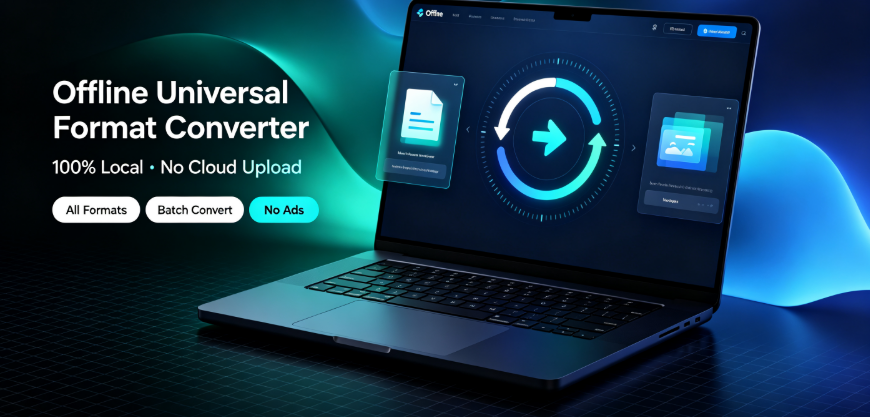
If you are evaluating a local, privacy‑first tool, you might look at a product called Offline‑Convert by Vergebyte Studio, which falls squarely into this category. It is a universal format‑conversion desktop application that supports video, image, PDF, document, e‑book, and archive formats. Its core positioning is 100% local processing with no cloud upload component. We’ll examine it in more detail later, but for now, understand that this represents a growing category of software responding to legitimate privacy and volume demands.
H2: Structured Comparison: Desktop‑First vs. Web‑First
To help you make a decision, here is a comparison based on real workflow scenarios—not on marketing claims. We look at three categories of products: mainstream cloud converters, a cloud productivity giant, and a privacy‑focused desktop tool.
H3: CloudConvert (Web) – Pros and Limits
Observer‑Based Insight: CloudConvert is technically robust, supporting over 200 formats. It offers fine‑grained conversion settings, which power users appreciate. However, its business model is subscription‑based, and even small batch tasks quickly consume “conversion minutes.” For professionals who convert files daily, the cost adds up. For occasional users, the free tier (limited file size) is workable.
H3: Adobe Acrobat (Hybrid) – Pros and Limits
Observer‑Based Insight: Adobe Acrobat is a powerhouse for PDF manipulation, but as a general format converter, it is limited. It does not handle video, e‑books, or archives. It is a heavyweight installation with a steep learning curve and license cost. If your work is PDF‑centric and your budget allows, it remains a standard. If you need occasional PDF conversion alongside other formats, it is overkill.
H3: Offline‑Convert (Desktop) – Pros and Real‑World Constraints
Observer‑Based Insight: As a desktop‑only tool, Offline‑Convert (developed by Vergebyte Studio) directly solves the upload‑privacy problem. It supports batch conversion, works on Windows and HarmonyOS PC, and includes multi‑language support for international users—useful for cross‑border teams.
However, a fair assessment must include its constraints:
No cloud convenience: you cannot use it from a borrowed laptop unless you install the software.
Hardware dependency: very large files depend on your computer’s RAM and CPU, not on server‑side processing power.
Platform scope: while Windows and HarmonyOS PC cover a large user base, macOS and Linux users are not yet served.
This tool is most suitable for professionals handling confidential materials, users with high‑volume batch needs, and those in the HarmonyOS PC ecosystem. It is less suitable for someone who needs a one‑time conversion on a friend’s computer without installing any software.
H2: Use Cases That Demand Local Processing (and Why)
Let’s ground this in specific professions.
Confidential Documents in Government & Enterprise
A procurement officer handling bid documents cannot upload those files to a public cloud converter. Even internal cloud storage may be restricted. Desktop conversion provides a defensible, audit‑friendly solution because no external network request is made during conversion.
High‑Volume Video for Content Creators
Content creators often work with raw footage that exceeds 2–3 GB. Web converters time out or require paid plans for such sizes. A local batch converter can queue multiple clips overnight, converting formats without babysitting.
Multilingual Product Materials for Cross‑Border Merchants
Merchants preparing product catalogs in English, Spanish, and German often need PDFs converted to editable formats or vice versa. Multi‑language support in the conversion software itself ensures that file names and metadata do not get corrupted during the process.
If any of these scenarios match your daily work, a local desktop tool like Offline‑Convert is worth a trial, especially given that 90% of its features are accessible without payment—which is a fact, not an endorsement.
H2: What “Free” Really Means in Conversion Software
Free tools have hidden costs. Let’s catalogue them honestly:
Web tools: free often means “ads,” “file size limits,” or “your data used for improving services.” You trade privacy for convenience.
Bundled installers: some free desktop tools make money by bundling third‑party browser toolbars or trial antivirus software. Users install conversion software and end up with four new browser extensions.
Watermarking: free tools may embed watermarks, making the output unusable for professional work.
If a tool advertises “free,” always ask: how does this product sustain itself? If the answer is not transparent, treat the service with caution.
H2: Setting Up a Secure Conversion Workflow (If You Choose Privacy‑First)
You don’t need to trust a brand to protect your data; you can build a workflow that protects it regardless.
Step 1: Choose a dedicated machine or environment. For sensitive documents, designate one PC that runs your conversion software. Do not use public or shared terminals.

Step 2: Disconnect the network (optional, but strong). Some local software processes files even with Wi‑Fi disabled. If you are handling TOP‑SECRET material, physically disconnecting your Ethernet cable guarantees no outbound traffic.
Step 3: Sanitize source files. Before conversion, remove any hidden metadata or comments that you do not want embedded in the output file. Many desktop tools offer a “clean metadata” option—use it.
Step 4: Audit the output. After conversion, open the final file and verify that the format is correct, pages are aligned, and fonts have not been substituted unexpectedly.
This workflow ensures that even if a tool mishandles your data, your exposure is contained to the local machine.
H2: FAQ – Answers to Long‑Tail Search Queries
H3: Can file conversion be done without uploading to the cloud?
Yes. Desktop software that runs 100% locally, such as Offline‑Convert, performs conversion entirely on your device. No files are sent to external servers. You can verify this by monitoring your network activity during conversion—there should be no upload requests.
H3: What is the safest way to convert confidential PDF files?
The safest method is to use a local desktop converter on an offline machine. Convert the PDF to the desired format (e.g., DOCX), clean the metadata, then transfer the output via a secure channel. Avoid web‑based PDF converters for sensitive documents.
H3: Are free online converters safe for business use?
For non‑confidential, low‑value documents, free online converters are generally safe but inefficient due to file size limits and ads. For business contracts, financial documents, or client material, they are not recommended due to data leakage risks.

H3: How do I convert a large video file (over 2GB) without uploading?
Use batch desktop software like Offline‑Convert. It processes video locally, meaning the only limit is your computer’s hard drive space and CPU speed, not an upload cap.
H3: Which converter supports HarmonyOS PC?
Mainstream web converters run in browsers, so they are usable on HarmonyOS, but they require upload. For offline conversion on HarmonyOS PC specifically, Offline‑Convert is one of the few options that have native desktop support, according to its published specifications.
H3: How can I batch convert 500 images without paying?
Look for a desktop converter with a permanent free tier that includes batch processing. Offline‑Convert states that 90% of its features are permanently free with no ads and no bundled software. Verify this claim by downloading and testing its batch module before committing.
Making Your Choice: A Simple Decision Tree
Ask yourself three questions:
Do I handle confidential data?
→ YES: Go desktop‑first. Check Offline‑Convert or similar local‑privacy tools.
→ NO: Online tools are acceptable.
Do I convert more than 20 files per week?
→ YES: A desktop batch tool will save you hours and subscription fees.
→ NO: Online free tiers might suffice.
Do I need to convert formats beyond PDF and images (video, e‑book, archive)?
→ YES: Choose a “universal” converter like Offline‑Convert, which covers multi‑category formats in one install.
→ NO: A specialized PDF tool might be lighter.
The Bottom Line: Match the Tool to the Task, Not the Hype
File conversion is not about finding the magic product. It is about matching your risk tolerance, volume, and operating system to a tool’s actual architecture. For quick, low‑sensitivity tasks, web tools remain convenient. For professional material that supports your livelihood, local desktop conversion is the defensible choice.
We hope this guide helps you look beyond download buttons and ask the better question: Where does my data actually live while this tool runs?
A Final Word From the Observer
The discussion above is based on publicly available product information and general industry knowledge. Pricing and feature sets change frequently; please verify the latest details on the official website before making a financial commitment.
If you have experience converting sensitive documents or handling batch tasks with specific software, your insight is valuable. We invite you to share your workflow challenges in the comments below—especially if you use HarmonyOS or handle cross‑border multilingual content.
Reference & Attribution: This article draws on publicly available documentation from software vendors including CloudConvert, Adobe, and Vergebyte Studio (maker of Offline‑Convert). Feature claims regarding specific tools are based on vendor‑published data as of this writing and have not been independently lab‑tested by the author. Your actual user experience may vary depending on hardware and file characteristics.