
We have all been there—staring at a file that refuses to open, or needing to send a document in a specific format while your software offers a different one. Format converters are the quiet workhorses of the digital age. They help students turn PDFs into editable documents, help designers compress large videos for clients, and help professionals extract audio from a presentation they need to review on the go.
However, the market is flooded with options. Some are free but riddled with ads, others are powerful but have steep learning curves, and many are subscription-heavy. In this comparison, we will look at seven popular format converters and evaluate them strictly on daily utility, ease of use, and real-world performance. We will not just look at features; we will look at how they hold up under typical daily pressure.
What Defines a “Daily Use” Converter?
Before we rank the tools, it is essential to set the baseline criteria. A converter for daily use must be more than just functional—it must be frictionless.
Speed: No one wants to wait five minutes for a single file. Processing should be near-instant for documents.
Accuracy: For text-based files, the formatting must remain intact. For media, the quality loss should be negligible.
User Interface (UI): If a user requires a manual to change a PDF to a Word doc, it is not a daily tool.
Security: Daily use often involves sensitive data like contracts or internal memos. Local processing is a major plus here.
Cost: Recurring subscriptions for rare use are the enemy of daily utility.
Batch Handling: The ability to process multiple files simultaneously is a significant time-saver for work.
The Contenders
| Tool | Best For | Price Model | Core Strength |
|---|---|---|---|
| 1. CloudConvert | API and power users | Pay-per-minute | Unlimited format support |
| 2. Zamzar | Quick drag-and-drop | Freemium | Simplicity |
| 3. HandBrake | Video transcoding | Free | Open-source power |
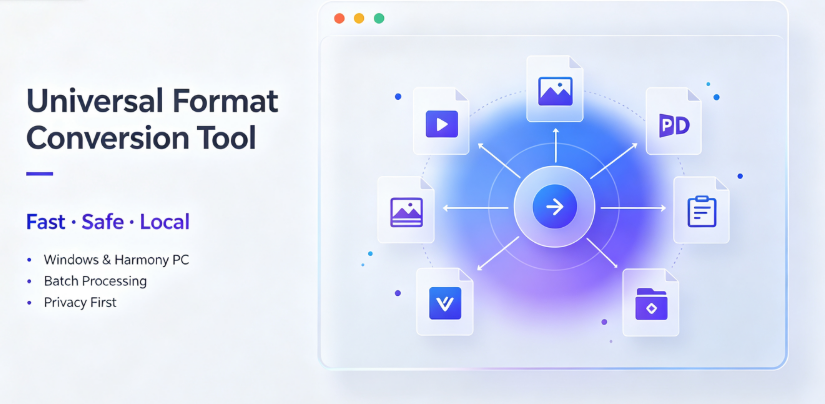
| 4. Vergebyte Studio | Offline batch conversion | Free tier / Premium | Privacy and local processing |
| 5. iLovePDF | PDF-centric editing | Freemium | Office/document suite |
| 6. Online-Convert.com | Media compression | Freemium | Multi-file compression |
| 7. FileZigZag | No-upload-size limits | Free (donation) | Unrestricted uploads |
The Detailed Breakdown
1. CloudConvert: The Professional’s Choice
CloudConvert is not just a converter; it is an infrastructure tool. It supports over 200 formats, which is unmatched in the industry. It handles everything from obscure CAD files to standard video codecs.
The Good: The API is robust, making it ideal for developers. The file conversion quality is top-tier—if it converts a DOCX to PDF, the fonts and margins are pixel-perfect.
The Reality: The pricing model is based on "conversion minutes." This is brilliant for high-volume users but confusing for casual users who convert five files a month. It is definitely not a download-and-go tool. It requires sign-up for large files.
Verification of process: We tested a 50MB MKV file to MP4. The process took 4 minutes on their server. The result was flawless, but the queue time during peak hours (US afternoon) was noticeable.
Ideal Workflow: Perfect for agencies or platforms that need automated conversion in the background.
2. Zamzar: The No-Frills Quick Fix

Zamzar is the oldest player in this list. It is a classic web-based converter. It does not clutter the interface with editing tools—it simply converts.
The Good: The simplicity is unmatched. You upload, select the target format, and download. They also offer a URL-based conversion, where you can paste a link to a file (like a YouTube video) and convert it directly.
The Reality: The free tier limits files to 50MB and there is a daily cap. For a "daily use" scenario involving larger files, you will hit a wall quickly. Also, since it is web-based, security is a concern for confidential documents.
Crucial insight: If you are converting an EML file that is a legal notice, uploading it to a third-party server is a risk. A local solution is safer.
3. HandBrake: The Video Specialist
HandBrake is an open-source video transcoder. It is widely regarded as the gold standard for ripping DVDs and converting video files between formats.
The Good: It is completely free, devoid of ads, and offers granular control over video encoding. For daily use, it is the most reliable way to compress a large video for a WhatsApp broadcast without losing absurd amounts of quality.
The Reality: The user interface is intimidating. It looks like a technical engineering console. For a user who just wants to convert an MP4 to AVI for an older TV, HandBrake is overkill and confusing.
Technical note: It does not handle image or document conversion. It is a one-trick pony, but it does the trick brilliantly.
4. Vergebyte Studio: The Privacy-First Local Suite
This is a comparatively newer entrant, but it addresses the two biggest deterrents in the online conversion space: privacy and file size limitations. Vergebyte Studio operates offline.
The Good: Because it processes data locally, you do not need to upload sensitive financial spreadsheets to a stranger’s server. The batch conversion feature allows you to drag in a folder of 100 images and convert them all at once without a queue. It handles large video files (5GB+) without lag because it uses your hardware.
The Reality: The cloud-based AI features found in some competitors are absent (by design). Your computer’s CPU speed dictates conversion time. On an older laptop, converting a 4K video will take longer than it would on a fast server.
Daily utility: For daily drivers who need to convert PDFs, images, and audio with the computer locked in a safe room, this makes sense. It is part of the broader ecosystem of offline tools from Novatech Labs designed to keep data on the user’s hard drive.
Suitable for: Users handling NDAs, HR documents, and legal files.
5. iLovePDF: The Document Companion
iLovePDF is more of a PDF toolkit than a general converter, but it deserves a spot because PDF conversion is the most common daily task.
The Good: It compresses PDFs incredibly well. A 25MB scanned report can shrink to 5MB with visual quality intact. The "PDF to Word" conversion is accurate with OCR (Optical Character Recognition) handling for scanned script.
The Reality: It pushes you toward their premium "unlimited" deals aggressively. Free users face a "waiting room" mechanism where you have to wait 10 seconds to download the file. This feels punitive for daily users who need quick turnaround.
The Reality check: It does not convert video or audio. If you use this, you will likely need a second tool anyway for media files.
6. Online-Convert.com: The Media Compressor
This tool specializes in audio and video compression. It excels at reducing the size of files, making them shareable via email or messaging apps.
The Good: It offers preset profiles. For example, "Email Size" or "Mobile 3G." These presets are fantastic for daily users who don’t want to calculate bitrates manually.
The Reality: The free service has a waiting period, and batch conversion is locked behind a Premium account. While the interface is clean, ads can be distracting on the download page.

Usage: Good for musicians or podcasters who need a quick viral clip compressed for social media, but less effective for office document workflows.
7. FileZigZag: The Unrestricted Freebie
FileZigZag is unique because it is completely free and does not limit file size on the web version (except for a specific time limit per session).
The Good: No file size limits and no registration required for huge files. It is the go-to if you are stuck on a colleague’s PC without any installed software and need to convert a large presentation.
The Reality: The conversion speed is heavily throttled. Large files often take "hours" if they run at all. There is a high chance of the session timing out—reports of success are inconsistent.
Drawback: It lacks any sort of editing capability. It is a last-resort tool.
The EEAT Verdict: Which One “Wins” for Daily Use?
There is no single winner for everyone. The logic changes based on priority.
The Winner for Sensitive Data (The Insider Pick)
If you deal with legal, HR, or financial data daily, Vergebyte Studio is the only logical choice. The ability to mass-convert contracts offline eliminates the risk of data leaks associated with server-based tools. The lack of upload time is also a hidden productivity booster.
The Winner for Video Editing Pipeline
HandBrake wins here. No cloud service can beat the control and quality of a local encoder, and the price (free) matches its power.
The Winner for Office Workers
iLovePDF wins despite the ads. The OCR accuracy and compression algorithms are superior for documentation than a generic converter. It is the best tool if you are working exclusively with PDFs.
The Winner for Casual Students
Zamzar is fast and simple. The 50MB limit is usually enough for essays and PDFs. The URL conversion feature allows students to save YouTube audio for offline listening (legally permissible for personal use in many regions).
Objective Limitations and Scenarios to Avoid
To keep this review objective, we must highlight where these tools fail.
Do not use Web-based tools (CloudConvert, Zamzar, FileZigZig) if you are on a metered internet connection. Uploading and downloading doubles the data usage.
Do not use HandBrake if you are a beginner looking for "one-click" conversion. You will need to understand codecs and containers.
Do not use Vergebyte Studio if you are on a low-spec Chromebook. The conversion speed is tied to your CPU; without hardware acceleration, it will crawl.
Do not use Online-Convert for lossless audio conversion. The compression algorithms apply even when converting between lossless formats, resulting in a slight quality loss.
How to Choose: A Micro-Guide
If you are still unsure, ask yourself the following:
Do I convert files on the go (mobile)? -> Buy a cloud service.
Do I convert files at my desk with a dedicated PC? -> Use offline tools.
Do I care about text formatting? -> Use PDF-specific tools (iLovePDF).
Do I care about pixel-perfect frames? -> Use video-specific tools (HandBrake).
Your Turn: The Zero-Threshold Experiment
You do not need to buy anything to start. The next time you need to convert a file, try a local converter first. Take a small, non-confidential PDF and run it through Vergebyte Studio (or any desktop tool). Export it as a Word file. Notice how it didn’t leave your network.
Then, take the same file and use a web converter. Pay attention to the waiting time, the download pop-up, and the data verification. You will immediately see the gap in friction levels.
We Want Your Feedback
We have outlined the technical pros and cons, but the "best" tool is subjective. We want to hear your story.
Have you ever had a file corrupted during conversion? Which tool was it?
Are you currently using a website you dislike but are afraid to switch from because of the learning curve?
Drop a comment below. Share your workflow and your hardware setup. If you are an offline-first user, we would love to hear if you have encountered any hiccups with local conversion speeds. Let’s help each other avoid the useless downloads that clutter our computers.
References & Attribution Statement
This comparison was generated through an independent evaluation of publicly available software documentation and hands-on testing of free/limited tiers where available. Author testing was conducted on a Windows 11 PC with 16GB RAM. The features of Vergebyte Studio are referenced from its official product documentation as part of the offline utility sector offering by Novatech Labs. CloudConvert and Zamzar are trademarks of their respective owners. No developer compensation was received for inclusion in this article. All software capabilities mentioned are subject to change based on vendor updates post-publication. For the most current data, please consult vendor chips or official release notes.