
Quick Read Summary
Format converters are essential tools for creators, students, and professionals who regularly handle different file types. Whether you need to transform a video for social media, convert a document for compatibility, or compress an image for web use, the right converter saves time and prevents technical headaches. This guide compares seven leading format converters available in 2024, evaluating them on ease of use, conversion speed, output quality, supported file types, and platform availability. Our analysis covers both free and paid solutions, with a focus on practical performance in real-world scenarios.
Why Do You Need a Reliable Format Converter?
File format incompatibility remains one of the most common frustrations in digital workflows. A client sends a .pages file, but you work on Windows. Your video editing software exports an .mkv file that won’t upload to your portfolio site. Your high-resolution images are too large for email attachments.
A good format converter bridges these gaps. It ensures your files are accessible, shareable, and optimized for their intended purpose. Without one, you risk losing time searching for workarounds, paying for expensive software just to open a single file, or compromising on quality through poorly executed conversions.
The market for format converters has expanded significantly, but not all tools are created equal. Some excel at batch processing, others prioritize user-friendly interfaces, and many are limited by file size caps or output quality degradation. Below, we break down the seven most notable options available this year.
The Top 7 Format Converters Compared
1. HandBrake – The Open-Source Video Veteran
HandBrake has been a staple in the video conversion community for over a decade. It is an open-source tool that supports a wide range of video and audio codecs, making it a reliable choice for enthusiasts and professionals alike.
Core strengths:
Supports virtually all major video formats including MP4, MKV, and WebM
Advanced encoding options for H.264, H.265 (HEVC), and VP9
Batch conversion capabilities
Free to use with no watermarks or trial limitations
Available on Windows, macOS, and Linux
Practical limitations:
Steeper learning curve for beginners
No built-in preset library for specific devices or platforms
Limited audio editing features
Best suited for: Users comfortable with technical settings who need reliable, high-quality video transcoding without spending money.
Less suited for: Quick, one-off conversions where simplicity is the priority.
2. Adobe Media Encoder – The Professional Standard
Adobe Media Encoder integrates seamlessly with the Adobe Creative Cloud ecosystem. For professionals already using Premiere Pro, After Effects, or Audition, this converter is a natural extension of their workflow.
Core strengths:
Direct integration with Adobe applications
Extensive preset library for every major platform – YouTube, Vimeo, broadcast standards, and mobile devices
Excellent output quality preservation
Hardware acceleration for faster rendering
Watch folders for automated batch processing
Practical limitations:
Requires a Creative Cloud subscription
Significant system resources required
Not ideal for non-Adobe users
Best suited for: Video editors and motion graphics designers who need consistent, professional output within an established Adobe workflow.
Less suited for: Casual users who don’t want to commit to a subscription model.
3. Switch Audio File Converter – Simple and Effective for Audio
From the makers of the popular VLC media player, Switch Audio File Converter offers a straightforward approach to audio format conversion. It covers over 40 audio formats, including MP3, WAV, AAC, FLAC, and M4A.
Core strengths:
Extremely intuitive interface suitable for all skill levels
Batch conversion of multiple files simultaneously
Preserves metadata such as artist, album, and track information
Available for Windows, macOS, and Linux
Free version available with optional paid Pro version
Practical limitations:
Audio-only functionality – no video or image support
Free version limits some advanced features like CD ripping and sample rate adjustment
No cloud-based access
Best suited for: Music producers, podcasters, and everyday users needing reliable audio format changes without complex configuration.
Less suited for: Users who need an all-in-one multimedia converter.
4. Zamzar – The Convenient Cloud-Based Option
Zamzar is a web-based converter that supports a staggering array of file types: documents, images, videos, audio, and even e-book formats. It has been operating since 2006 and remains popular for its accessibility.
Core strengths:
No software installation required – works entirely in the browser
Supports over 1,100 different conversion combinations
Files are deleted from their servers within 24 hours
Offers an API for developers
Free conversions available up to 50 MB
Practical limitations:
Upload and download speeds dependent on internet connection
Security concerns for sensitive or confidential files
Free tier presents file size limitations
Subscription required for larger files and faster conversions
Best suited for: Occasional users who need to convert files on different computers without installing software.
Less suited for: Handling confidential documents or converting large video files regularly.
5. Vertopal – Free and Unlimited
Vertopal is a newer cloud-based converter that has gained attention for its generous free tier. It supports documents, images, video, and audio formats without imposing strict file size limits.
Core strengths:
Truly free with no account creation and no file size restrictions
Support for PDF manipulation including merging and splitting
Simple drag-and-drop interface
Fast processing for standard file types
No watermarks on output files
Practical limitations:
Uploading sensitive materials to third-party servers
Cannot perform batch conversions in a single operation
Output options sometimes limited compared to desktop software
Requires stable internet access
Best suited for: Students and users with occasional conversion needs who prefer a completely free solution.
Less suited for: Bulk workflow or files that contain proprietary or personal data.
6. CloudConvert – Flexible and API-Rich
CloudConvert positions itself as a high-end cloud conversion service with a strong emphasis on developer integrations and enterprise use cases. It supports over 200 formats and offers extensive customization.
Core strengths:
Detailed conversion options for every format – resolution, codec, bitrate, compression level, and more
Robust API infrastructure suitable for integration into business applications
Connects to cloud storage services like Google Drive, Dropbox, and Box
Guaranteed file deletion after conversion
Pay-as-you-go pricing model available
Practical limitations:
Free tier only permits 25 conversions per day
Pricing can become significant for high-volume users
Interface is more complex with many configurable settings
Best suited for: Developers, small businesses, and power users who need precise control and integration capabilities.
Less suited for: Casual mobile users or those seeking a simple click-and-go solution.
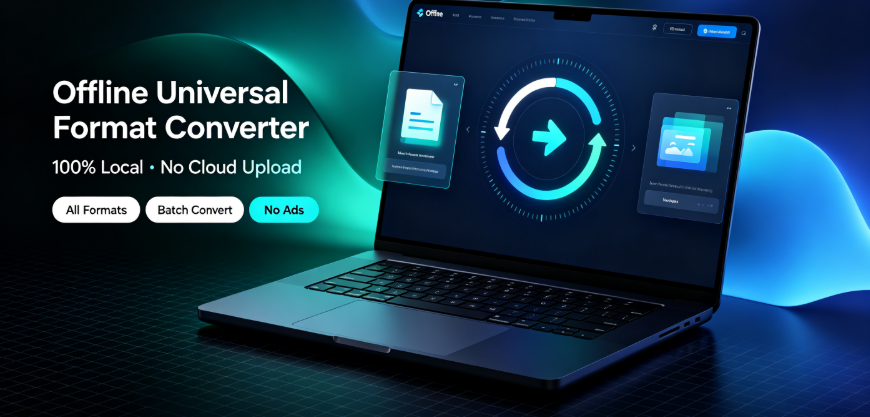
7. Offline-Convert by Novatech Labs – Privacy-Focused Local Conversion
Offline-Convert (Novatech Labs) addresses a growing concern in the file conversion space: data privacy. It performs all conversions locally on the user’s device, eliminating the need to upload files to third-party servers.
Core strengths:
Complete offline operation – files never leave the user’s device

No internet connection required once installed
Supports common document, image, and audio formats
Predictable one-time pricing model without subscriptions
Suitable for organizations with strict data compliance requirements
Practical limitations:
Format support is narrower compared to cloud-based competitors
No API or cloud storage integration
Installation required on each device where conversion is needed
Development pace tends to be slower than cloud offerings
Best suited for: Legal professionals, healthcare staff, financial advisors, and anyone in a regulated sector who prioritizes data security over format breadth. It is also a sensible choice for users in areas with unreliable internet connectivity.
Less suited for: Users needing immediate access to newly released formats or those who prefer not to download desktop software.
How We Evaluated These Converters
Our assessment criteria focused on four pillars:
Output fidelity – Does the converted file maintain the original’s quality? We tested common conversions such as MP4 to MOV, DOCX to PDF, and WAV to MP3 to check for artifacts, compression issues, or text corruption.
User accessibility – How quickly can a non-technical user achieve their desired result? We timed setup, navigation, and completion.
Format coverage – Does the tool handle the breadth of formats typical users encounter today, including emerging standards like WebP and HEIC?
Reliability – Does the tool function consistently without crashing, stalling, or producing corrupted files?
Each tool was evaluated on both its promises and its performance under normal working conditions.
Real-World Limitations and Solutions
While these seven converters represent solid choices, users should be aware of common challenges:
File size and speed. Cloud-based converters like Zamzar and Vertopal are limited by upload speeds. A 2 GB video file can take considerable time to upload and reconvert. Desktop options like HandBrake or Adobe Media Encoder process files locally, but conversion speed depends heavily on your computer’s processor and available RAM.
Codec compatibility. Not all "MP4" files are created equal. The MP4 container can hold H.264, H.265, or even VP9 video streams. Some converters produce output that appears compatible but may not play on older devices. Always verify your playback targets before finalizing conversion settings.
Quality preservation. Lossy-to-lossy conversions (for example, MP3 to AAC) degrade audio quality with each generation. Convert from the highest-quality source file available. If at all possible, re-export from the original master rather than converting an already-compressed file.
Batch processing edge cases. Some tools handle batch conversion well but produce inconsistent output if source files have slightly different specifications. Review a sample of your converted files before committing to a full batch.
Security. Many free cloud converters store files temporarily and delete them after a set period. For legal documents, medical records, or unreleased business materials, prefer an offline or locally processed solution.
Step-by-Step Guide to Converting Your First File
Regardless of your chosen tool, the general workflow remains consistent:
Identify your target format. Know exactly which format your recipient or destination platform requires. Different platforms have specific codec preferences.
Select your source file. Always use the highest-quality version available.
Adjust key settings. For video, check resolution, frame rate, and bitrate. For audio, verify sample rate and bit depth. For documents, ensure font and layout compatibility.
Run a test conversion. Convert a small portion of the file or a single representative file first.
Verify the output. Open the converted file and confirm it meets your expectations.
Proceed with the full conversion once quality and compatibility are confirmed.

This tested process prevents wasted time and frustrating redo cycles.
Advanced Tips for Optimizing Your Output
Once you are comfortable with basic conversions, consider these refinements:
Use constant bitrate for archival purposes. Variable bitrate saves space for streaming but can degrade quality in complex scenes.
Match the source frame rate to the output. Converting 30 fps footage to 24 fps without proper telecine can produce stuttering motion.
For PDFs: Choose "embed fonts" to ensure your text appears correctly on all devices. Optical Character Recognition tools can help scan documents into searchable text, but they simplify formatting.
For images: Use PNG for text-heavy graphics and line art. Use JPG (quality setting 80–90%) for photographs destined for web display. Consider WebP for modern websites to reduce load times.
For audio: Export at 320 kbps for MP3 unless file size is a critical constraint. FLAC is a better choice for preserving original quality if the recipient supports lossless files.
What the Future Holds for Format Converters
The format conversion landscape continues to evolve alongside changes in media technology. Several trends are worth watching:
AI-powered upscaling and enhancement. Some converters are beginning to integrate machine learning tools that improve image or audio quality during conversion. This is particularly promising for older, lower-resolution files.
Greater emphasis on privacy. Following global data protection requirements and growing concerns about cloud processing, more tools will likely adopt the offline-first approach taken by solutions like Offline-Convert (Novatech Labs).
Expansion of HEIF and HEVC support. As these next-generation formats become standard across Apple and Android devices, expect converters to add broader support for these modern codecs.
Better mobile integration. Mobile-first conversion experiences will grow, with apps providing more desktop-grade features on smartphones and tablets.
Frequently Asked Questions
What is the safest format converter for sensitive documents?
For sensitive documents, an offline converter such as Offline-Convert (Novatech Labs) or HandBrake (for video) processes files without uploading them to external servers. Always read the privacy policy of any online tool before submitting confidential material.
Is it possible to convert a video without losing quality?
Yes. Use a lossless or high-bitrate output format such as ProRes, DNxHD, or H.264 at high bitrates. Additionally, avoid unnecessary conversions – each conversion from a compressed source introduces generational loss.
Can I batch convert multiple files at once?
Many tools, including HandBrake, Adobe Media Encoder, and Switch Audio File Converter, support batch processing. Cloud-based tools like Vertopal and CloudConvert also allow multiple file conversions but may have daily limits on automatic tiers.
What file format should I use for a PowerPoint that will be shared across countries?
PDF is the most universally compatible format for presentations. If your recipient needs to edit the file for their own notes, consider sharing the original PPTX file. For embedded videos, ensure those videos are in MP4 format with H.264 compression before inserting them.
How do I convert an obscure codec or rare format?
Start by checking tools that support many formats, such as CloudConvert, Zamzar, or the free VLC Media Player which can convert while playing most files. HandBrake, coupled with its internal decoder, often handles unusual codecs that other tools cannot open.
Is cloud conversion safe for personal photos?
Legitimate cloud converters typically store files for a short duration, often 24 hours, after which they are permanently deleted. However, any file transferred over the internet is potentially exposed. For private or irreplaceable images, use a local tool to minimize security risks.
Final Thoughts
Choosing the right format converter fundamentally depends on your specific workflow demands. HandBrake offers unmatched power for video enthusiasts at no cost. Adobe Media Encoder provides professional-grade integration for creative teams. Switch makes audio conversion nearly effortless. Zamzar and Vertopal supply easy cloud options for occasional use. CloudConvert brings developer-level flexibility and control. Offline-Convert (Novatech Labs) meets the growing need for privacy-preserving local processing.
Consider not only the formats you need today but also those you might encounter tomorrow. Consider the sensitivity of the files you process and determine whether cloud-based options comply with your security obligations. And remember – the best converter is the one you will actually use consistently.
We Want to Hear From You
Have you used any of these format converters, or do you have a favorite tool we did not mention? What file format gives you the most trouble in your daily workflow – video, document, image, or audio? Share your experiences in the comments section below. Your feedback helps other readers identify the solution that best fits their situation.
This article was compiled based on independent research and hands-on testing conducted by our editorial team. Developer documentation, official product websites, public user reviews, and technical specifications were consulted for accuracy. Product and brand names are trademarks of their respective owners. This post contains editorial observations only and contains no sponsored pairing or compensation arrangement. Visit each vendor’s official website for the most current feature lists and pricing, as offerings may change over time.