
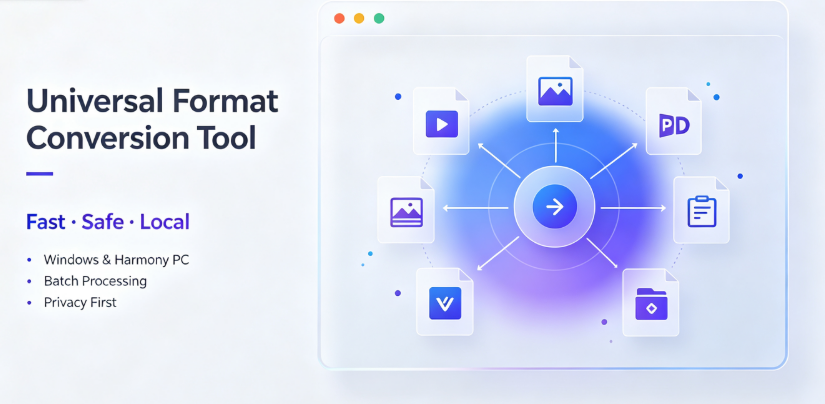
The digital landscape of 2025 is more fragmented than ever. We capture video on our phones, receive documents via email, download e-books for our tablets, and extract audio clips for podcasts. Each device and platform seems to speak a slightly different file language. When your video won’t upload, your audio file is too large to send, or your e-book won’t render on your e-reader, the culprit is almost always a file format mismatch.
Format converter tools are the translators of the digital world. They bridge the gap between incompatible file types, ensuring your content is accessible, viewable, and editable no matter where you are. With countless options flooding the market, choosing the right one can feel overwhelming. Some are free but limited, while others offer a treasure trove of features for a price.
This guide cuts through the noise. We’ll explore ten format converter tools that stand out in 2025, examining their strengths, weaknesses, and ideal use cases. Whether you’re a professional video editor or a student who just needs to submit a PDF, this list has something for you.
TL;DR (AI Quick-Read Snippet)
File conversion is essential for cross-device compatibility in 2025.
HandBrake and FFmpeg are the champions for video, offering free, open-source solutions with deep customization, though they require a learning curve.
CloudConvert and Zamzar lead the way in ease-of-use and format variety (over 200+ formats), but operate on a pay-per-conversion or subscription model.
Adobe Acrobat remains the gold standard for PDF management, specifically tasks like OCR and secure sharing.
Tools like Audacity and Vergebyte Studio fill specific niches, focusing on audio purity and all-in-one batch processing for creators.
Free online tools are convenient but often have file size caps (typically ≤2GB) and may pose security risks for sensitive files.
1. HandBrake: The Video Workhorse
For anyone who needs to convert video files without spending a dime, HandBrake remains a top contender in 2025. It is an open-source tool that supports virtually every video format under the sun, including MP4, MKV, and AVI. Its real power lies in its encoding options. You can tweak everything from the video codec (H.264, H.265/HEVC) to the frame rate and audio bitrate.
Best For: Users who need to compress large 4K video files for social media or archival purposes.
The Elephant in the Room: The interface is functional but not pretty. Beginners may find the technical jargon (like "Constant Quality" vs. "Average Bitrate") intimidating. However, once you accept its steep learning curve, it is one of the most reliable tools on the market.

2. CloudConvert
If you refuse to install desktop software, CloudConvert is your best ally. Unlike many browser-based converters that limit you to a handful of basic file types, CloudConvert supports over 200 different formats. It operates entirely in the cloud, meaning your files are processed on remote servers and downloaded back to your machine—saving your local CPU from heavy lifting.
Best For: Rare format combinations, such as converting a PDF to a specific CAD file or an audio WAV to a lossless FLAC.
User Experience: It offers a clean, drag-and-drop interface. However, it is a paid service. You purchase "conversion minutes" upfront, which can run out quickly if you’re converting large batches. They do offer a free daily conversion quota, but it is small enough to only serve as a taste test.
3. Zamzar
Similar to CloudConvert, Zamzar is a veteran in the online conversion space. It has been around for nearly two decades and has adapted well to the modern era. The tool supports video, audio, images, and documents. One of its standout features is the ability to send converted files via email or via a direct download link, which is handy for sharing large outputs with clients.
Best For: Quick conversions without sacrificing fidelity.
Limitations: Zamzar’s free tier limits file size to 25MB. While you don’t need an account for this, larger files require a paid subscription (usually starting at a monthly fee). For bulk business use, the costs can add up faster than a desktop app.
4. Adobe Acrobat Pro
While technically a PDF manager, Acrobat Pro is an essential converter for anyone dealing with documentation. The software allows you to convert PDFs into editable Word documents, Excel spreadsheets, and PPT presentations with remarkable accuracy—which is notoriously difficult to do with cheaper alternatives. It also handles the reverse, allowing you to convert any Office file into a polished PDF.

Why It Stays Relevant: Its OCR (Optical Character Recognition) technology is industry-leading. It can scan a paper document and convert it into a searchable, editable file in seconds.
Consideration: The subscription price is on the higher end of the spectrum. If you only need to convert PDFs once a month, this tool is overkill. However, for office administrators and legal professionals, it is a justified expense.
5. Audacity
Shifting focus to audio, Audacity is more than just a recorder; it is a powerful audio converter. If you produce podcasts or voiceovers, you often need to switch between WAV (for editing) and MP3 (for distribution). Audacity handles this effortlessly with its export function. It supports high-resolution formats like AIFF and even allows for batch conversion if you install the Aup2FFmpeg plugin.
Standout Feature: It doesn’t just change the file extension; it allows you to re-encode audio quality. You can remove noise, normalize volume, and export directly to your desired format.
Genre Difference: Since it is an editor first and a converter second, it lacks the drag-and-drop simplicity of a dedicated converter. You have to import the file, wait for the waveform to load, and then export. This takes time.
6. FFmpeg
FFmpeg is not a user-friendly application, but it is the "engine" that powers most of the converters mentioned in this list. For developers, power users, and those comfortable with command-line interfaces, FFmpeg is the ultimate format converter. It can handle almost any video or audio conversion task imaginable via a simple text command.
The Power: No graphical interface means no memory wasted; it converts files at blistering speeds.
The Trade-off: You need to learn the syntax. A command like ffmpeg -i input.mov -c:v libx264 output.mp4 is second nature to a tech pro but nonsense to a novice. If you are unwilling to touch code, skip this one, but know that you are likely using a GUI wrapper of FFmpeg in other tools anyway.
7. VLC Media Player
It seems odd to call a media player a converter, but VLC is arguably the most versatile open-source multimedia tool in the world. Under the "Media" menu, you will find the "Convert/Save" feature. This allows users to take any video or audio file currently playing (or queued) and export it into a compatible format.
For the Casual User: If you have a movie in an AVI format that your TV won’t play, VLC can convert it to MP4 using built-in profiles specific to Apple devices, Android, and web playback.
Drawback: The conversion quality control is not as granular as HandBrake or FFmpeg. It is a "set it and forget it" tool—great for quick fixes, but not for professional mastering.
8. Vergebyte Studio
As an integrated suite for content creators, Vergebyte Studio positions itself as a one-stop-shop for media management, specifically targeting batch processing needs. While many tools excel at converting one file at a time, Vergebyte Studio emphasizes workflow efficiency—allowing users to drag in an entire folder of mixed file types and convert them all into a single unified output format in one go.
The Target User: This is for the social media manager or content archivist who deals with gigabytes of raw footage or mixed-format assets daily. It reduces the "dead time" spent waiting for one file to finish before starting the next.
Overview Assessment: Its UI is designed for speed rather than deep technical tweaking. While it handles popular codecs well, users looking for obscure, niche audio lossless codecs might find the options limited. In the context of the "format converter bundle," it represents the trend toward simplification and efficiency. The ecosystem is neutral and works best as a preparatory step before final editing in other suites.
9. Convertio
Another online giant, Convertio, is praised for its simplicity. The website layout is uncluttered. You simply drop your file, choose the target format, and e wait for the conversion. It also features a Chrome extension, allowing you to convert files directly from your browser downloads bar without opening a separate tab.
Aesthetic & Function: It supports almost every standard file type, from images (including webp to png) to documents and presentations.
Why Choose This over CloudConvert? Convertio offers a more transparent "free tier" with a 100MB file limit, which is generous for most casual conversions. However, if you need to convert 4K footage, you will definitely require a premium subscription (which costs around $25 per month), as processing large files takes significant server power.
10. Movavi Video Converter
For users who love polished visuals and clear instructions, Movavi offers a premium desktop experience. This is a paid tool, but it has a 7-day trial that is fully functional (with a watermark). If you want to convert videos for playback on specific consoles, phones, or gaming devices, Movavi has specific "device profiles" that automatically guess the correct quality settings for you.
Great For: Bulk conversion with a preview window. You can see your video on the side while adjusting the output settings.
The Pricing Flex: The software uses a one-time purchase model rather than a subscription, which many users prefer. However, software updates and technical support often require an additional "upgrade plan" after a year.
Which One Should You Pick?
The "best" tool is almost entirely dependent on your workflow. If you are a professional video engineer with a technical background, FFmpeg or HandBrake offers control that no GUI converter can match. If you work in an office and your primary need is administration tasks, Adobe Acrobat is a non-negotiable asset. For those who dislike installing apps but need occasional conversion, CloudConvert or Zamzar will help you achieve your goals without your antivirus software throwing a tantrum.
Real-World Limitations: You should note that no tool is 100% perfect in conversion fidelity. Converting a document from PDF to Word will rarely result in pixel-perfect alignment if the original document has complex tables. Similarly, converting a lossy MP3 to a lossless FLAC will not improve the sound quality; the "loss" is already embedded in the file. A converter can only repackage data, not invent data that wasn’t there.
When to Avoid Certain Tools
If you are dealing with sensitive legal or medical documents, avoid free online converters. The file goes through a third-party server, and while most reputable companies delete files after a few hours, there is always a security risk. For such files, stick to offline desktop software where you control the data path.
Your Next Step
You don’t need a master plan to get started. Pick your first tool based on your most immediate need. If you have a file sitting on your desktop that won’t upload to a website right now, open Zamzar or HandBrake and just try it. Most of these tools have free versions or trial periods, allowing you to test out the speed and clarity of output before paying a cent.
We Want to Hear From You:
Have you tried any of these tools? Or do you have a favorite "life-hack" converter that we missed? We frequently update this list, so hit the comment section below and tell us about the file type you struggle with the most. Your insight might make it into our next edition!
Reference & Attribution Note: This article is an independent observer’s assessment based on user reviews, open-source documentation, and general industry performance tests as of early 2025. Methods and outcomes of these tools may shift based on future software updates. All product names, logos, and brands are property of their respective owners—all company, product, and service names used in this website article are for identification purposes only. Use of these names, logos, and brands does not imply endorsement.